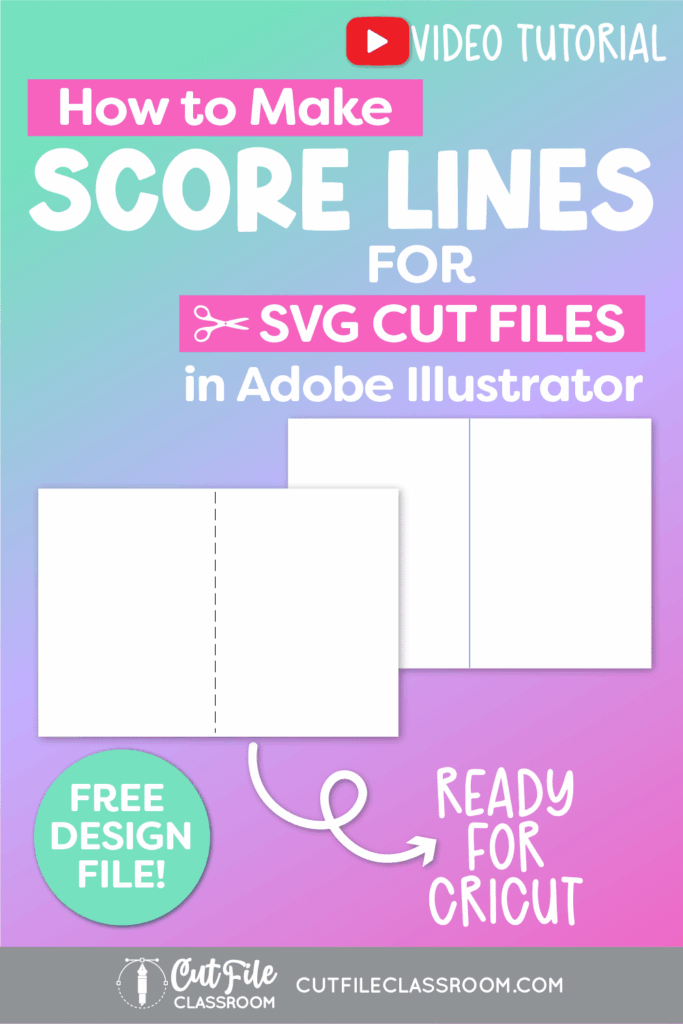
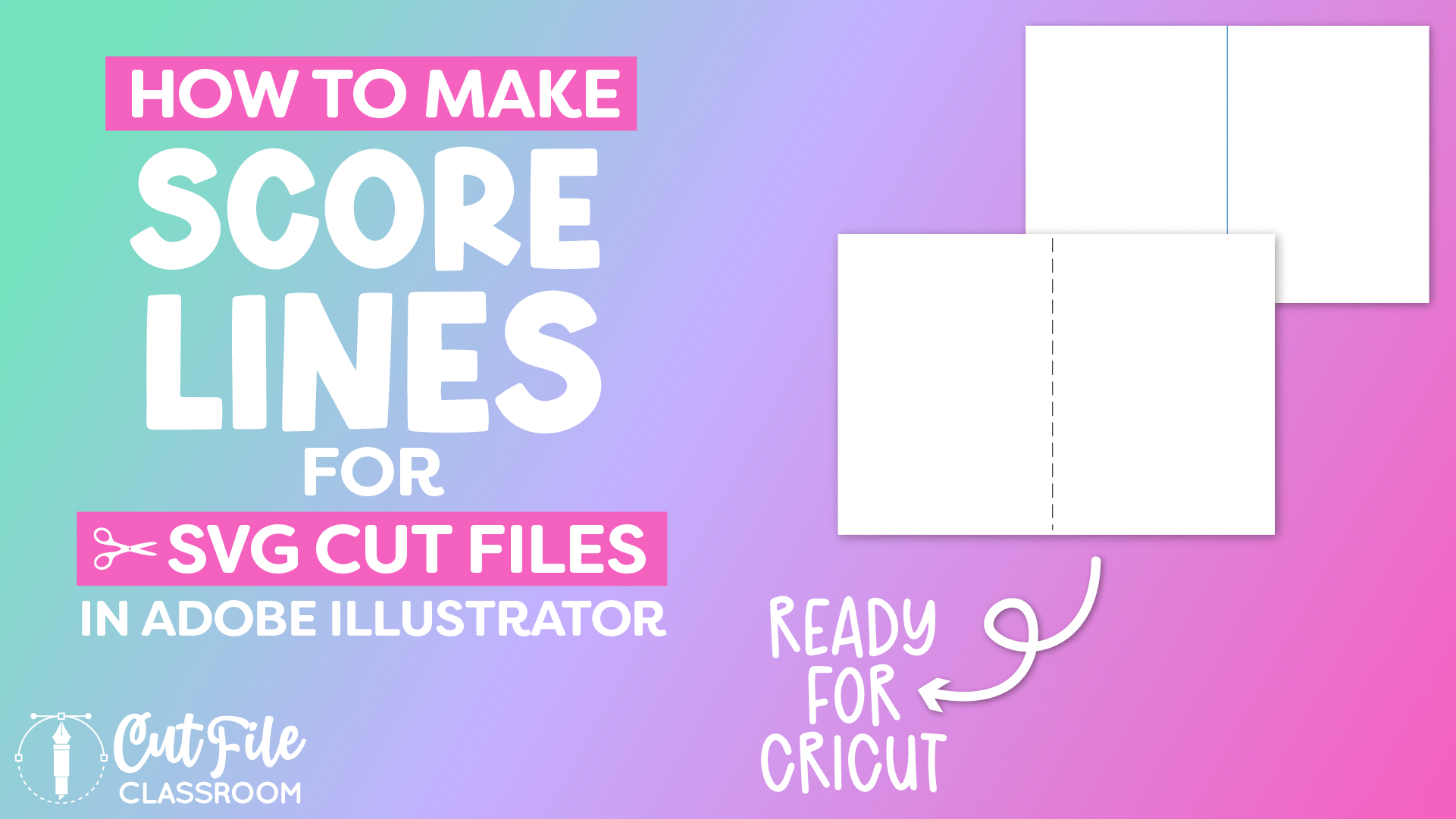
Learn how to make SVG files with score lines for Cricut using Adobe Illustrator! In this beginner-friendly tutorial, I’ll show you how to create perfect solid and dashed score lines so your cards, boxes, and 3D projects fold beautifully in Cricut Design Space and other cutting machine programs.
If you’ve ever been frustrated by score lines that don’t work correctly in Cricut or Silhouette, this video will help you fix all of that. You’ll learn the right way to create SVG files with score lines are user-friendly and compatible with any cutting machine.
In this video, I’ll show how to design a basic A2 card base with a simple fold line down the center, but once you learn how to create proper score lines, you can apply this technique to other foldable SVG projects like more advanced card folds, boxes, 3D sculptures and more!
If you want to follow along, I’ve included a link below where you can download this Illustrator practice file, which includes the color palette I used, and the finished SVG files with score lines.
Video Tutorial: How to Make SVG Files with Score Lines
If you prefer written step by step instructions for how to make SVG Files with Score Lines for Cricut in Illustrator instead of video, continue reading.
Download & Follow Along
Free Illustrator Practice File – CFC013:
To follow along and learn how to make SVG Files with Score Lines for Cricut in Illustrator, download the free Adobe Illustrator practice file for this tutorial.
Includes the finished designs and color palletes shown in this video.
Grab it from my Free Design Library: File # CFC013.
Want access to this free file? Join my FREE Design Library! All you need is the password, which you can get by filling out the form below!
Free Design Library!
Subscribe to my free newsletter and get instant access to my FREE Design Library, which includes this file and all other design tutorial files!
Enter your email and check your inbox for the password!
Written Overview: How to Make SVG Files with Score Lines for Cricut
Solid Score Lines:
- Use the Rectangle tool (M) and click once on the artboard. Enter 8in and 5.5in in the width and height fields respectively to create a card base for an A2 sized card.
- Give the card shape a fill color with no stroke color.
- To add a solid score line, use the Line Tool (\) to draw a Vertical line down the center of the card.
- Give the line a stroke color (I used blue) with no fill color.
- Select the score line and card base shape and use the Align panel to center align the line to the card shape.
- Group the score line and card base together.
- Your solid score line is complete and ready to Save as an SVG!
Dashed Score Lines:
- Select the solid score line card and make a copy to use as a starting point for the dashed score line card.
- Use the Direct Selection tool to select the solid score line. In the Stroke Panel, click the “Dashed Stroke” box. Set your dash and gap options in the field below (I used an 18pt dash and 9pt gap).
- With line still selected, change stroke weight to .0001pt. (The path will become hairline thin and very hard to see).
- With dashed line still selected, choose OBJECT > EXPAND in the top menu. Leave “fill” and “stroke” checked, then click OK.
- Now the dashed line has expanded to be multiple separate dashed paths that are a compound path.
- Give the dashed score line a stroke color and increase stroke weight to .25pt or .5pt.
- Select card base and dashed score lines and group them together.
- Your dashed score line card is ready to Save as an SVG!
Using SVG Files with Score Lines in Cricut Design Space
Watch this video to see how to use SVG files with Score Lines in Cricut Design Space.
Now you know how to make SVG files with solid and dashed score lines that are ready to cut in Cricut Design Space and other cutting programs. Download my Free Designer’s Guide to Error-Free SVGs to see my recommended settings for Saving SVG files.
Give this a try and come share your finished score line designs (and any questions) in my free Facebook Group!
Want to learn how to design and sell any kind of SVG cut files from scratch in Illustrator? My upcoming SVG design course will cover everything you need to know! Join the Cut File Academy Waitlist to stay tuned!
If you have any requests for future SVG tutorials, drop a comment below – I’d love to hear ’em!
If you found this SVG design tutorial helpful, Pin the image below to come back later, and to help other SVG designers learn how to make SVG files with score lines in Illustrator for Cricut and other cutting machines!