Learn how to make a bow SVG file for Cricut using Adobe Illustrator! In this video tutorial, I’ll walk you step by step through how to create bow SVG files in Adobe Illustrator that’s clean, cut-ready, and easy to use with Cricut and other cutting machines.
Bows are very popular in SVG designs during Valentine’s Day, but also with the popular Coquette trend, bows can be used for gift tags, cards, decals, stickers, t-shirt designs, and endless SVG designs where you want a feminine touch.
This easy to follow tutorial is also packed with foundational design skills you can reuse on all of your SVG designs.
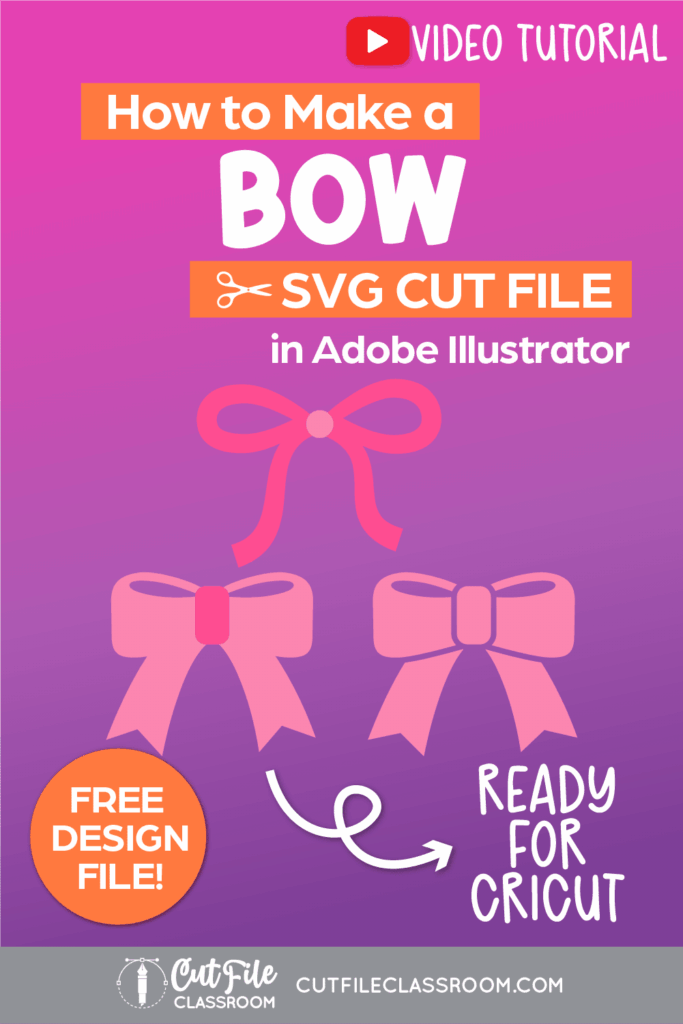
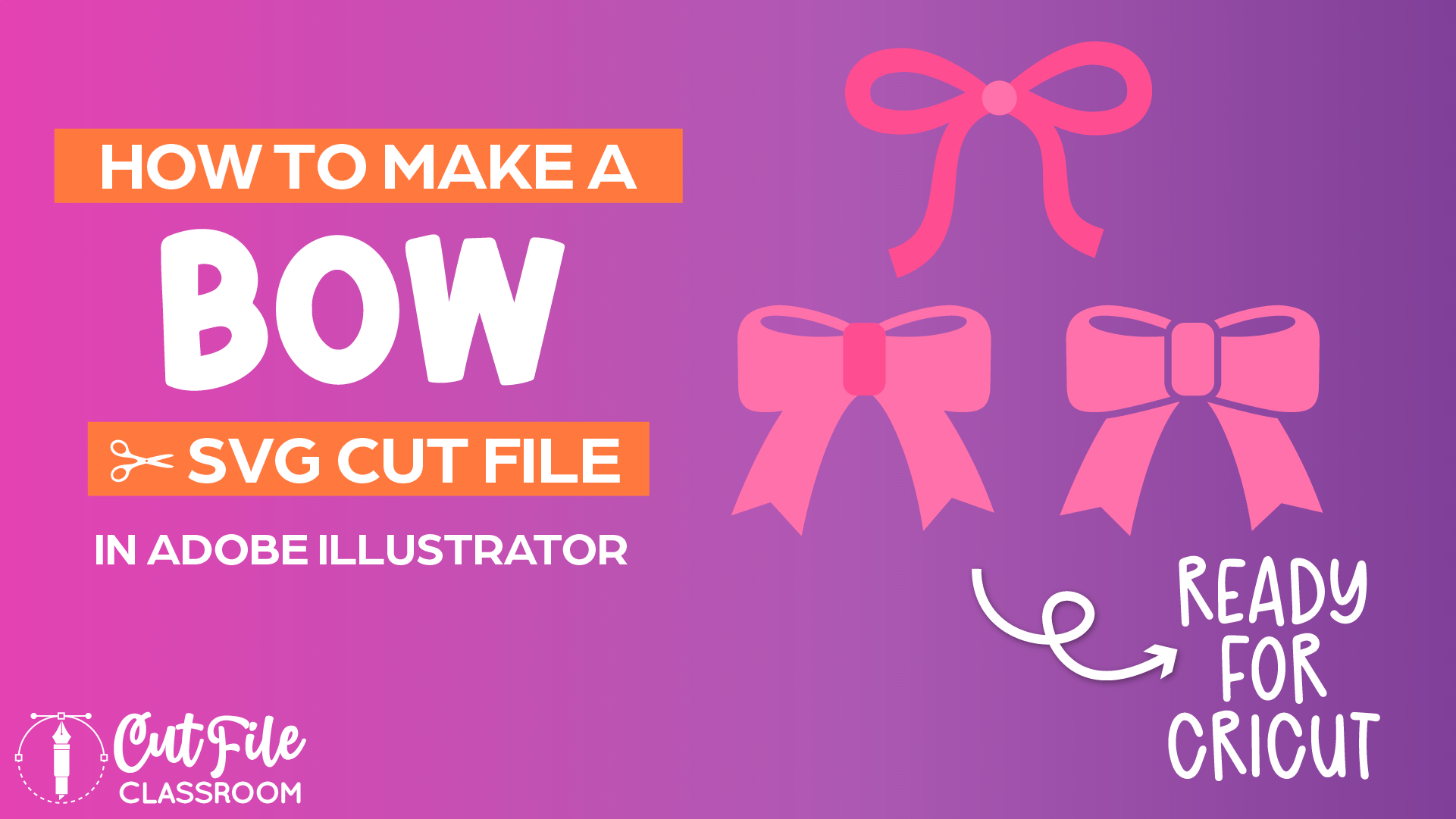
I’ll show you how to create 3 different style bows that are easy to draw, and then show you how to make them ready to cut for Cricut and other cutting machines.
If you’d like to follow along, I’ve included a link below to download the Illustrator practice file, which includes the finished bow SVGs, along with their working versions, so you can see exactly how each one is created.
Video Tutorial: How to Make SVG Files for Cricut: Bow SVG in Illustrator
If you prefer written step by step instructions for how to make a Bow SVG File for Cricut in Illustrator instead of video, continue reading.
Download & Follow Along
Free Illustrator Practice File – CFC015:
To follow along and learn how to make a Bow SVG File for Cricut in Illustrator, download the free Adobe Illustrator practice file for this tutorial.
Includes the finished designs and color palletes shown in this video.
Grab it from my Free Design Library: File # CFC015.
Want access to this free file? Join my FREE Design Library! All you need is the password, which you can get by filling out the form below!
Free Design Library!
Subscribe to my free newsletter and get instant access to my FREE Design Library, which includes this file and all other design tutorial files!
Enter your email and check your inbox for the password!
Written Overview: How to Make a Bow SVG File for Cricut
Draw a Bow SVG 1:
- Press L to grab the Ellipse tool and draw a horizontal oval on your artboard. Set Fill to None and set stroke weight and color as desired (I used 20pt).
- Press SHIFT+C to grab the Convert Anchor Point Tool and click on anchor point on left side of oval to convert to a corner point forming a tear drop shape.
- Use Direct Selection tool to select middle anchor points and drag to the right to smooth out tear drop shape.
- Press P to select Pen tool. Click near the corner point of the tear drop (this will be the center of your bow) click and drag slightly down and to the right then move cursor down a bit and drag slightly down and to the right again to create a wave curve (this is the ribbon tail).
- Use stroke panel to thicken stroke weight if needed.
- Use Width Tool to add variation to the width of the stroke at the curved end of the bow loop, and at the bottom end of the ribbon tail. Now half of your bow is starting to form.
- Reflect a copy of the bow shape to create the left half of the bow. Select the loop and ribbon tail paths, press O to grab Reflect tool. Click at the center of the bow to set point of reflection, then press ALT / OPT and SHIFT as you click slightly below Point of Rotation to reflect a copy.
- Press L and use the Ellipse tool to draw a circle for the center knot of your bow. Make sure circle has fill color and no stroke color.
- Select loop and ribbon tail paths and choose Object > Path > Outline Path to convert paths into vector shapes.
- Select circle knot and make a copy on clipboard for later.
- Select full bow shape and click Unite in Pathfinder panel to combine overlapping shapes into a compound shape.
- Paste in Front to place a copy of the circle knot on top of the compound shape. Give different fill color to stand out from bow.
- Your first bow is complete!
Draw a Bow SVG 2:
- Press M to grab Rectangle Tool draw a horizontal rectangle.
- Using Direct Selection tool, select both anchor points on the left side of the rectangle, then right click and choose Transform > Scale.
- In the Scale options window, check “Non-Uniform” keep the Horizontal value set to 100% and adjust the Vertical to a smaller percentage to form a tapered trapezoid shape. Toggle Preview button to see how your changes will look (I used 60%). When you’re happy, click OK.
- Use Direct Selection tool to select both anchor points on the right side of the trapezoid, and click and drag inward over the live corner widgets to convert the right side of the shape to rounded corners.
- Use Direct Selection tool as needed to tweak shape of the bow loop to your preference.
- To create loop cutout, press L key and use Ellipse tool to draw a narrow horizontal oval above the bow. Set fill color to white (stroke color to none), and place oval over bow shape.
- Press SHIFT+C and use Convert Anchor Point tool to convert left anchor point of oval into a corner point (creating a tear drop shape).
- Use Direct Selection tool to select middle anchor points and drag to the right to smooth tear drop shape.
- Press R to grab the Rotate tool and click on the corner of the tear drop to set point of rotation. Then click and drag other end to rotate shape until it matches the angle of the top of the bow.
- Use Direct Selection tool to adjust bow shape as necessary to finish.
- Select tear drop shape and bow shape and choose “Minus Front” in Pathfinder panel to subtract the teardrop shape from the bow, creating a compound path for the bow loop.
- To draw ribbon tail, press P to grab Pen Tool. Click near the center point of the bow, click and drag slightly down and to the right then move cursor down a bit and drag slightly downward to create an arc shape for the ribbon tail. Use Direct Selection tool to adjust as needed.
- Use stroke panel to thicken stroke weight if needed.
- Use Width Tool to add variation to the width of the stroke at the bottom end of the ribbon tail. Now half of your bow is starting to form.
- Reflect a copy of the bow shape to create the left half of the bow. Select the loop shape and ribbon tail path, press O to grab Reflect tool. Click at the center of the bow to set point of reflection, then press ALT / OPT and SHIFT as you click slightly below Point of Rotation to reflect a copy.
- Press M and use the Rectangle tool to draw a vertical rectangle for the center knot of your bow. Click and drag live corner widgets inward to make corners rounded as desired.
- Select ribbon tail paths and choose Object > Path > Outline Path to convert ribbon tail paths into vector shapes.
- Use Pen tool to add anchor points at the bottom of the ribbon tails and use Direct Selection tool to drag points upward, creating inverted cutouts at the end of the ribbon tails.
- Select full bow shape and make a copy on the side of the Canvas for later use.
- Select the center knot and make a copy on clipboard for later.
- Select full bow shape and click Unite in Pathfinder panel to combine overlapping shapes into a compound shape.
- Paste in Front to place a copy of the knot on top of the compound shape. Give different fill color to stand out from bow.
- Your second bow is complete!
Draw a Bow SVG 3:
- Make a copy of Bow 2 from the Canvas onto your artboard.
- Use Selection tool to select both bow loop shapes and center knot shape.
- Choose Object > Path > Offset Path to create an offset around the selected shapes (I used offset of 0.08pt with Rounded corners. Click OK.
- With offset still selected, give it a different fill color to stand out from the rest of the bow (I used green)
- Make sure ribbon tails are behind the bow loop / knot shapes.
- Select full bow shape and click Trim in Pathfinder panel to “slice” through and combine overlapping shapes.
- Use Magic Wand tool to select offset shapes quickly (set magic wand to select Fill Color, with a Tolerance of 1). Then Delete offset shapes.
- Use CMMD / CTRL Y to switch to Outline view to check for any invisible paths created by Trim function and delete as needed.
- Select bow 3 and choose Object > Compound Path > Make to make sure the bow cuts as a single shape in Cricut Design Space.
- Now bow 3 is complete!
Now you know how to make a bow SVG file that’s ready to cut in Cricut Design Space and other cutting programs. Download my Free Designer’s Guide to Error-Free SVGs to see my recommended settings for Saving SVG files.
Give this a try and come share your finished bow designs (and any questions) in my free Facebook Group!
Want to learn how to design and sell any kind of SVG cut files from scratch in Illustrator? My upcoming SVG design course will cover everything you need to know! Join the Cut File Academy Waitlist to stay tuned!
If you have any requests for future SVG tutorials, drop a comment below – I’d love to hear ’em!
If you found this SVG design tutorial helpful, Pin the image below to come back later, and to help other SVG designers learn how to make a Bow SVG file for Cricut in Illustrator and other cutting machines!