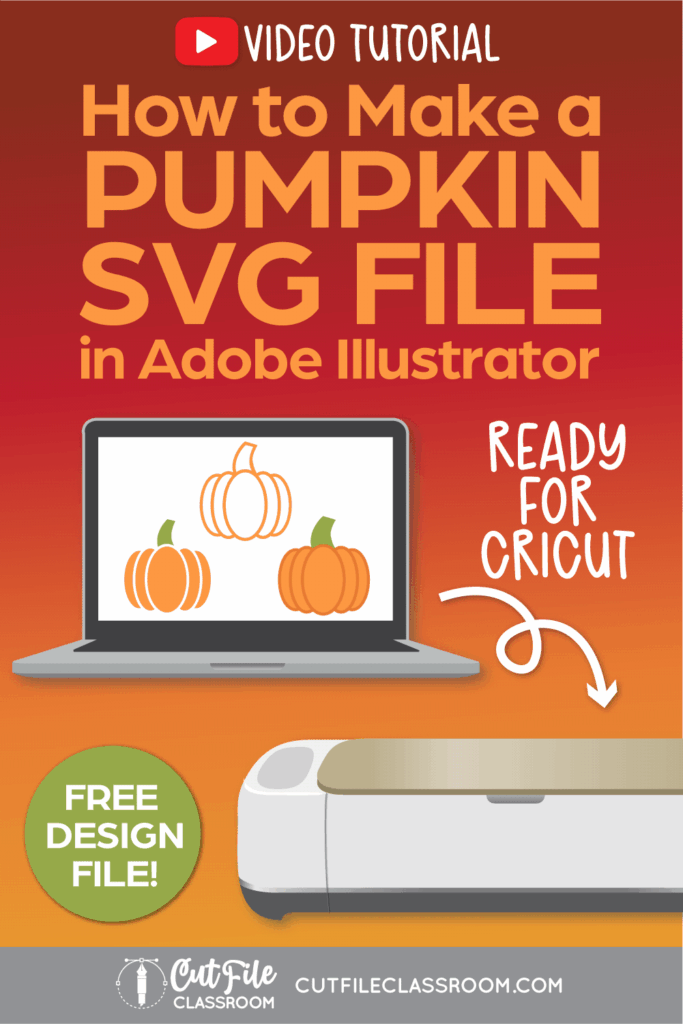
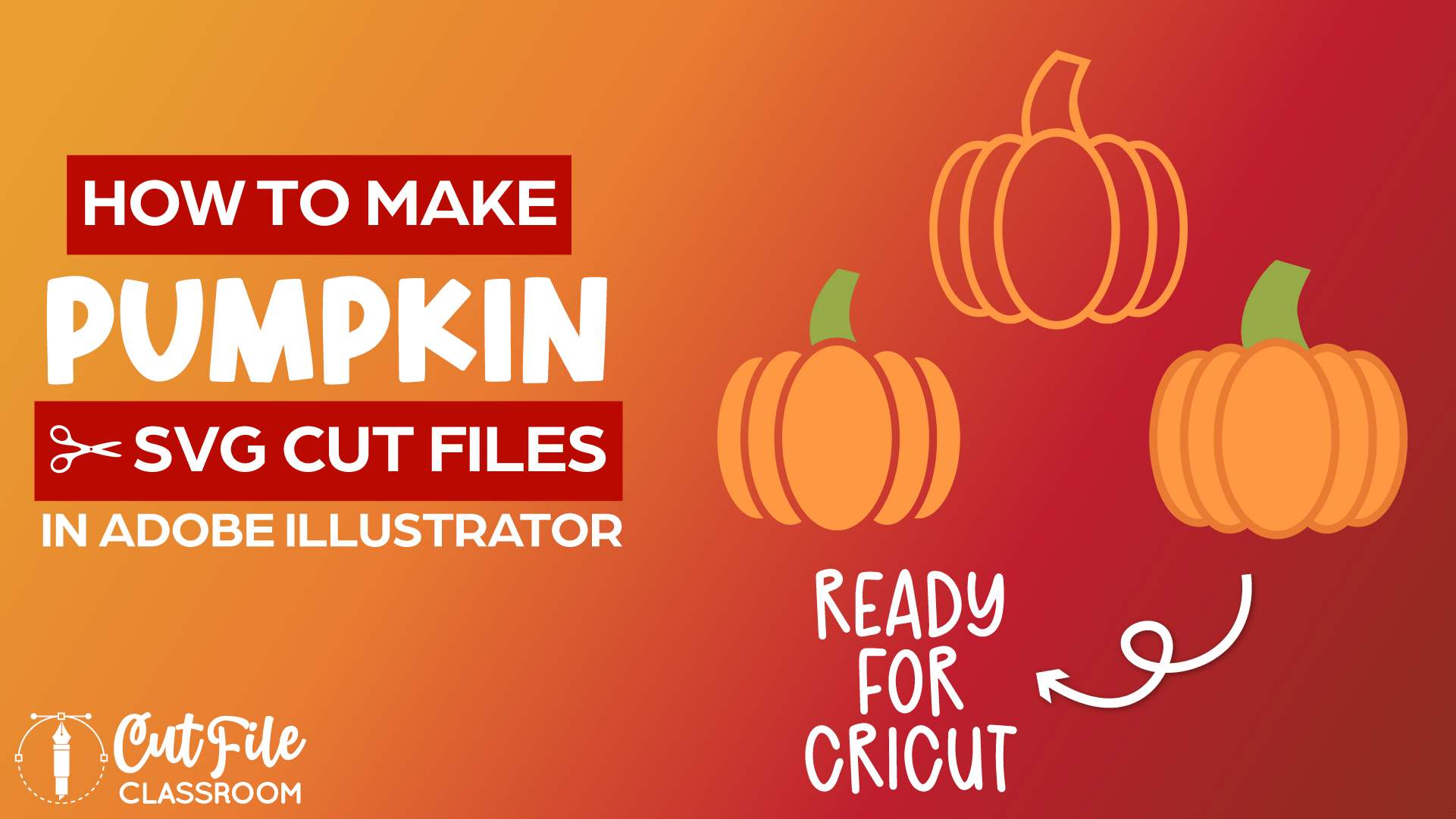
Whether you’re designing for Autumn, Halloween, or Thanksgiving, Pumpkins are a must-have Fall staple. Learn how to make Pumpkin SVG Files from scratch in Adobe Illustrator and by the end, you’ll have SVG files that are ready to cut with a Cricut, Silhouette, or other cutting machine.
I’ll also show you exactly how to build this pumpkin SVG design differently for cardstock versus vinyl – because the material you’re cutting definitely changes how you should structure your cut files.
If you want to follow along, I’ll put the link below where you can download the free illustrator practice file which includes these finished pumpkin SVG designs, and the working versions used to create them.
Video Tutorial: How to Make SVG Files for Cricut: Pumpkin SVGs in Illustrator
If you prefer written step by step instructions for how to make pumpkin SVG Files for Cricut in Illustrator instead of video, continue reading.
Download & Follow Along
Free Illustrator Practice File – CFC018:
To follow along and learn how to make Pumpkin SVG Files for Cricut in Illustrator, download the free Adobe Illustrator practice file for this tutorial.
Includes the finished designs and color pallets shown in this video.
Grab it from my Free Design Library: File # CFC018.
Want access to this free file? Join my FREE Design Library! All you need is the password, which you can get by filling out the form below!
Free Design Library!
Subscribe to my free newsletter and get instant access to my FREE Design Library, which includes this file and all other design tutorial files!
Enter your email and check your inbox for the password!
Written Overview: How to Make Pumpkin SVG Files for Cricut
Draw Pumpkin SVG:
- Press L to grab the Ellipse tool and draw a vertical oval.
- Set the Fill Color to a lighter orange, and the Stroke color to a dark orange.
- Make the stroke weight thicker – I used 10pt stroke.
- Select the oval and hold Opt (Mac) / ALT (PC) as you click and drag to the side to make a copy of the oval.
- Press CMMD D (Mac) / CTRL D (PC) to repeat that action, creating a third oval.
- To rearrange the stacking order of the ovals, select the oval on the far right, right-click and choose Arrange > Send to Back.
- Then select the middle oval and choose Arrange > Send Backward.
- Now the oval on the far left should appear at the front of the stacking order.
- Resize the ovals on the right side to get increasing shorter from left to right.
- Select the 2 ovals on the right, right-click and choose Transform > Reflect. Choose Vertical and click Copy. Then hold SHIFT as you drag the copied ovals over to the left side of the center oval, forming a pumpkin shape.
- Arrange and resize the ovals as needed to create your desired pumpkin shape.
Draw the Pumpkin Stem:
- To draw the stem, Press P to grab the Pen tool. Click above the pumpkin where you want your stem to begin, and click and drag down and slightly to the left to begin a curved path. Release your mouse to set the anchor point.
- Place your mouse where you want your stem to end, and click and drag downward and slightly to the right to create a slightly curved path. Release your mouse to complete the path and change the stroke color to green with no fill color.
- Use the Width tool to click and drag at the bottom endpoint of the stem to make it wider to add some variation to the stem path.
- Still using the Width tool, click and drag at the top endpoint of the stem to taper the stem shape so it’s more narrow at the top.
- To make the stem cuttable, select the stem path and choose Object > Path > Outline Stroke. This converts the stem into a vector shape.
- To make the pumpkin cuttable, select the orange oval shapes and choose Object > Path > Outline Stroke to convert them into vector shapes.
- With the ovals still selected, click “Merge” in the Pathfinder panel to combine overlapping shapes of the same color.
- This base pumpkin shape will be used to create additional versions.
Make SVG for Vinyl or Paper Crafts:
- To make a pumpkin outline SVG that is easy to layer with vinyl or paper, select the light orange oval pieces and delete them, leaving the darker orange pumpkin outline.
- Select the Stem shape and press SHIFT X on your keyboard to swap the fill and stroke. Now your stem should have no fill color and a green stroke color.
- Increase the stroke weight to match the ovals (I used 10pt).
- Select the stem path and choose Object > Path > Outline Stroke. This converts the stem outline into a vector shape.
- Select the orange pumpkin and the green stem shapes and use the Shape Builder tool to combine them into a single shape. Give it an orange fill color.
- This pumpkin cut file can be used for vinyl or paper.
Make SVG for HTV or Vinyl Crafts:
- To make a pumpkin SVG that is easy to layer with vinyl, make a copy of the original pumpkin shape.
- Select the full pumpkin shape and stem, and click “Merge” in the Pathfinder panel. This will trim away any overlapping areas of the stem, so it fits together like puzzle pieces.
- Now select the darker orange pumpkin outline shape and delete it, leaving behind the light orange spaced out pumpkin shapes.
- With the light orange pumpkin shapes still selected, choose Object > Compound Path > Make to make sure they cut correctly in cutting machine programs like Cricut Design Space.
- Select the Stem and pumpkin shape and group them together.
- Now your pumpkin SVG for vinyl is complete and ready to save as an SVG!
Make SVG for Paper Crafts:
- To make the pumpkin SVG that’s easy to layer with paper / cardstock, we’ll return to the original pumpkin design and now we need to create a “base” layer that makes it easier to stack with layers of paper.
- Using the Group selection tool, click the outer edge of the dark orange outlines and press CMMD / CTRL C to make a copy, then CMMD / CTRL B to paste in Back. With the copied shape still selected, change the fill color to light orange.
- To add the stem shape to the base layer, select the stem shape and press CMMD / CTRL C to make a copy, then CMMD / CTRL B to paste in Back. With the back copy still selected, hold SHIFT and click on the light orange base layer to add it to your selection, and click “Unite” in the Pathfinder panel.
- If your base shape changes color, you may need to change it back to light orange.
- Now using the Group selection tool, click the outer edge of the dark orange outlines and press CMMD / CTRL C to make a copy, then CMMD / CTRL F to paste in Front.
- Select the stem shape and the copied dark orange copied pumpkin shape and click “Minus Front” in the Pathfinder panel to trim the stem shape to fit around the pumpkin perfectly.
- Now your Pumpkin SVG for paper is complete and ready to save as an SVG!
Now you know how to make pumpkin SVG files that are ready to cut in Cricut Design Space and other cutting programs. Download my Free Designer’s Guide to Error-Free SVGs to see my recommended settings for Saving SVG files.
Give this a try and come share your finished pumpkin (and any questions) in my free Facebook Group!
Want to learn how to design and sell any kind of SVG cut files from scratch in Illustrator? My upcoming SVG design course will cover everything you need to know! Join the Cut File Academy Waitlist to stay tuned!
If you have any requests for future SVG tutorials, drop a comment below – I’d love to hear ’em!
If you found this SVG design tutorial helpful, Pin the image below to come back later, and to help other SVG designers learn how to make Pumpkin SVG files for Cricut in Illustrator and other cutting machines!